
Google Translate for Videos: What Works?
Learn what Google Translate can and cannot do with video, when to use captions or subtitles, and how to create an editable dubbed video with SoulDub.
Someone sends you a 20-minute tutorial. It looks exactly like the thing you need, except it is in a language you do not speak. You pause, replay the same sentence, copy a line into a translator, and go back to the video. That is usually when the search begins: “Google Translate for videos.”
The phrase sounds simple, but it hides three different jobs. You may only want to understand a video. You may be preparing subtitles for other people to read. Or you may need a finished version with a new spoken language. Those jobs use different tools and produce different files.
Here is the honest short answer: Google Translate can help with the words in a video, but its consumer website does not offer an “MP4 in, dubbed video out” workflow. If you only want to watch, begin with the video's captions and audio settings. If you are preparing something for publication, decide first whether the audience needs text, timed subtitles, or a translated voice.
What Google Translate can do with the material from a video
The Google Translate website offers text, image, document, and website translation. Its document translation instructions list DOCX, PDF, PPTX, and XLSX files. MP4 video and SRT subtitle files are outside that document-upload list.
So, if you have a transcript, Google Translate can help you understand a passage or prepare a first translation. That can be a useful step. It is simply not the same as making a video. The translation does not create subtitle timing, record a new voice track, or assemble a downloadable file.
That distinction applies to the Google Translate website. Google's other speech features and YouTube's own tools have separate rules. YouTube, for example, offers automatic dubbing for eligible videos, so it would be inaccurate to say that every Google-related video workflow stops at plain text.
First decide what you want to hand to the viewer
The easiest way to choose a workflow is to picture the handoff at the end.
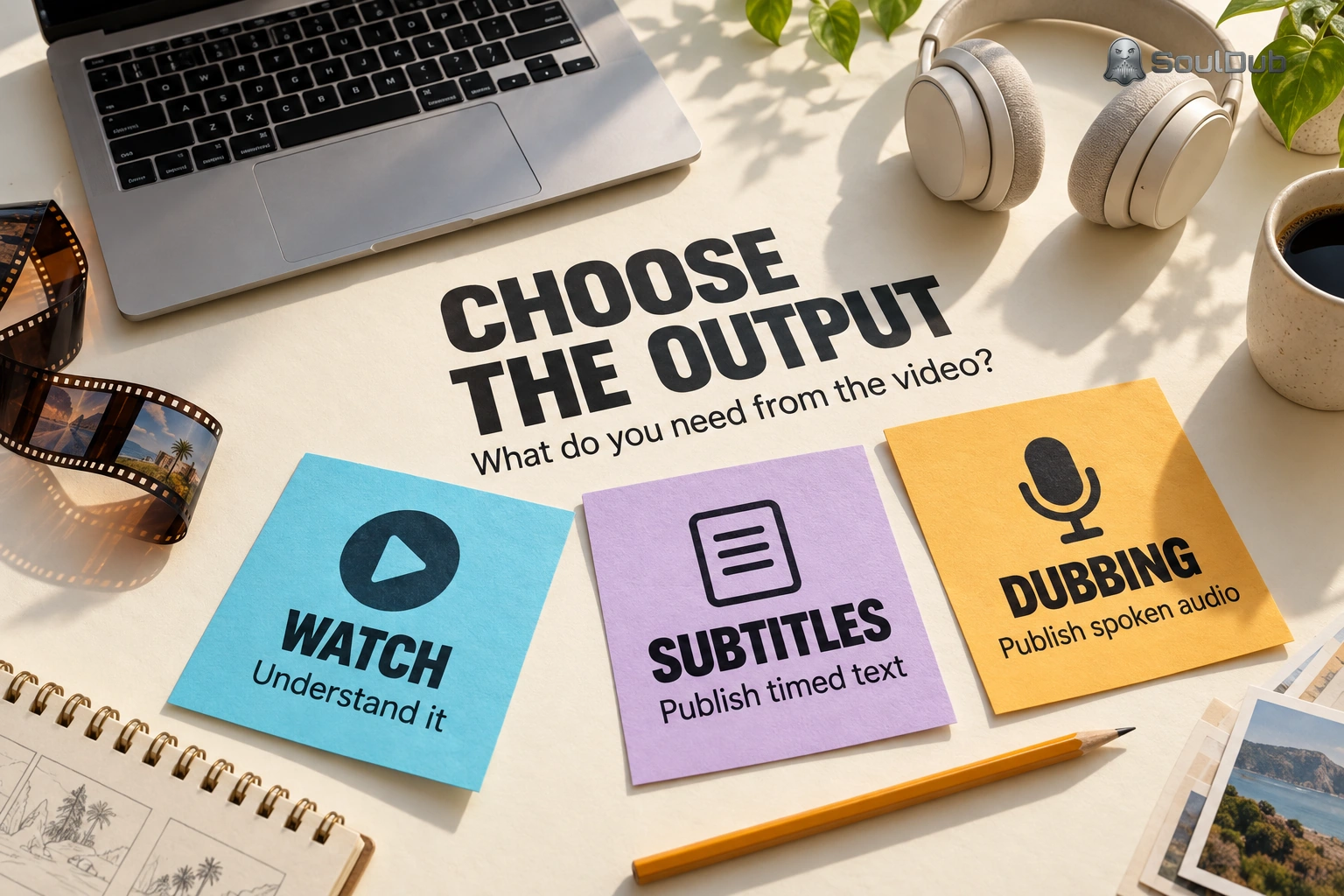
If you are watching someone else's video, you probably do not need a new file at all. Open the video's caption and audio settings first. On YouTube, the captions controls let you turn on available subtitles and, where offered, choose a language or Auto-translate. An available dubbed track may be enough to follow the explanation without reading.
The useful test is not whether every sentence has been translated. It is whether you can follow the next action without stopping the video again. If one name, number, or sentence is unclear, translate that passage and check it against the surrounding discussion. A transcription error can pass straight into the translation.
Subtitles are a different job. If you are publishing them, start with an accurate transcript. If you already have timed subtitles, keep the cue numbers and timestamps, and translate the text inside each cue. Do not treat the whole SRT file as one long paragraph: it contains dialogue and timing information, and a text translator does not check whether a line stays on screen long enough to read.
Small wording changes can affect the action on screen. “Press and hold the button for three seconds” is not the same instruction as “Press the button.” That kind of detail is worth checking before you adjust line breaks or shorten a caption. Then play the subtitles with the video. A sentence can be perfectly correct and still appear after the click it describes.
When subtitles are not enough
A translated voice is useful when viewers need to keep their eyes on the demonstration: a cursor moving through a product interface, a repair step, or a lesson where the speaker is pointing at something on screen. In that situation, a translated transcript is only part of the deliverable.
A dubbing workflow has to keep several pieces together: the original transcript, the translation, the spoken delivery, the timing, and the final video. The problems are often small but noticeable. A brand name is pronounced the wrong way. A translated sentence takes longer than the original. A pause lands just as the important control appears. A voice can sound fine when read from a script and still get in the way of the scene.
If YouTube is your destination, check its automatic dubbing feature. Eligible creators and videos may receive translated audio tracks, and creators can review dubs before publication. Availability varies by language, channel, and video. For a file you own and need to deliver to several destinations, a dedicated video translation workflow may be more practical.
A sensible way to review a translated video
Once the goal is a finished video, translation is only the first pass. SoulDub brings video translation, subtitle editing, translated speech, and completed downloads into one workflow.
Start with a short section instead of the whole recording. Pick a clip with ordinary speech, one name or technical term, and one moment where timing matters. That small sample tells you more than a long, unreviewed render.
Upload the clip and choose the source and target languages supported for your task. Check the file-size and duration limits shown in your account. Then read the original and translated subtitles together. Correct names, numbers, and transcription mistakes, and read the translated lines aloud. A sentence that looks polished on the page may be awkward to say.
After changing a line, update its translated speech when the task and language support it. Listen to the revised segment with the surrounding scene, then complete the video update. Changing the text alone does not prove that the downloadable video contains the new audio.
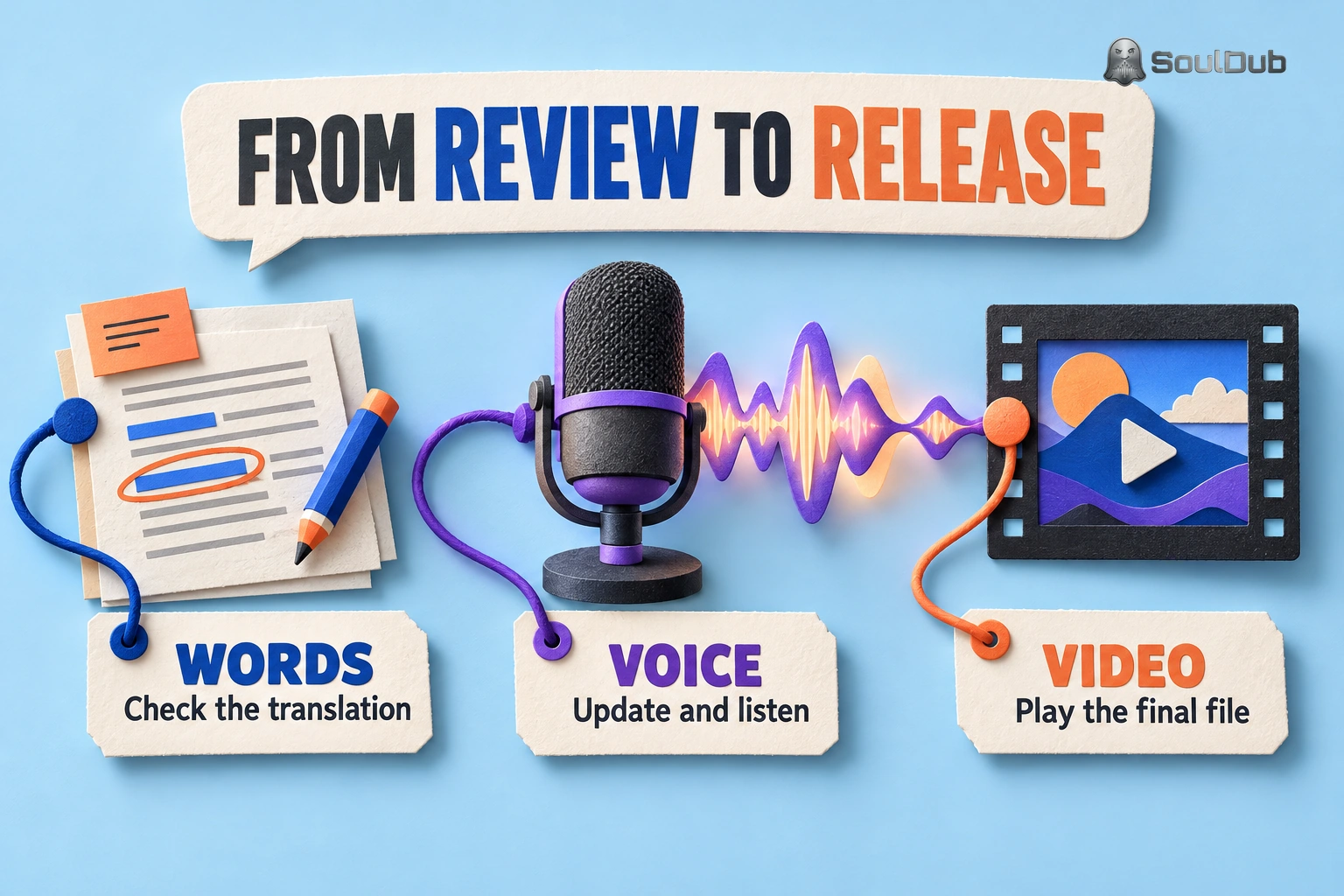
Download the finished video and play the edited passage one more time. This catches a common handoff mistake: the new wording was approved, but an earlier audio or video export is the file that gets published. It is also the point where you can check the version that will actually go to the audience, rather than the version still open in the editor.
Four checks before you publish
-
Meaning: Names, numbers, instructions, and technical terms still say what they are supposed to say.
-
Listening: Pronunciation, pacing, pauses, and volume fit the surrounding scene.
-
Reading: Subtitles stay on screen long enough and line up with the speech or action.
-
The file itself: The download contains the latest approved changes, and important text inside slides, charts, or the filmed scene is understandable to the new audience.
The last check is easy to skip. Translating the voice and subtitles does not automatically translate words that are printed inside the picture. If the narration says “click Save” but the button on screen still uses an unfamiliar label, viewers may still hesitate. Inspect those moments separately.
Choose the smallest workflow that solves the real problem
For a video you simply want to understand, use the language options already available in the player and translate only the passages that need help. For subtitles, preserve the timing while you review the words. For a video people need to listen to in another language, review the translated speech and the exported file together.
If you need that last result, start a video translation in SoulDub. Try a short clip first, listen to one difficult passage, and play the exported result before processing the full recording.
By
Evan Reed
SoulDub chief technical expert, focused on video translation technology, AI dubbing systems, and practical multilingual content workflows.


