
Docs
SoulDub User Guide: From Video Upload to Export
A practical SoulDub user guide covering video upload, translation setup, subtitle review, voice regeneration, and available exports.
What SoulDub does
SoulDub provides a browser-based workflow from translation setup to export. You can choose a supported source and target language, monitor processing, open task details, and enter the subtitle editor when the first result needs human review.
Exact actions and outputs depend on the source media, selected languages, task state, plan limits, and processing services available for the task. The controls and status shown for the current task are the source of truth.
Shortest path: upload to download
Use this path when you need a first translated result quickly:
Sign in → Open workspace → New translation → Upload video → Choose target language → Create task → Check progress → Open task details → Download
1. Sign in and open the workspace
Sign in to SoulDub and open the workspace. The project list shows existing videos and task statuses. For a first project, choose “New translation” or “Translate a video”.
2. Create a translation and upload a video
Upload a video that you have permission to process and publish. The current creation flow normally accepts MP4 files and shows file size, duration, and account upload limits. Clear speech and limited background noise generally make review easier.
3. Choose the target language and create the task
Choose the source language, target language, and speaker setting when requested. Before creating the task, check the estimated credit usage, video duration, and available balance, then select “Create Translation Task”. Language availability, credit estimates, and processing options can change, so use the values shown in the current interface.
4. Check task progress
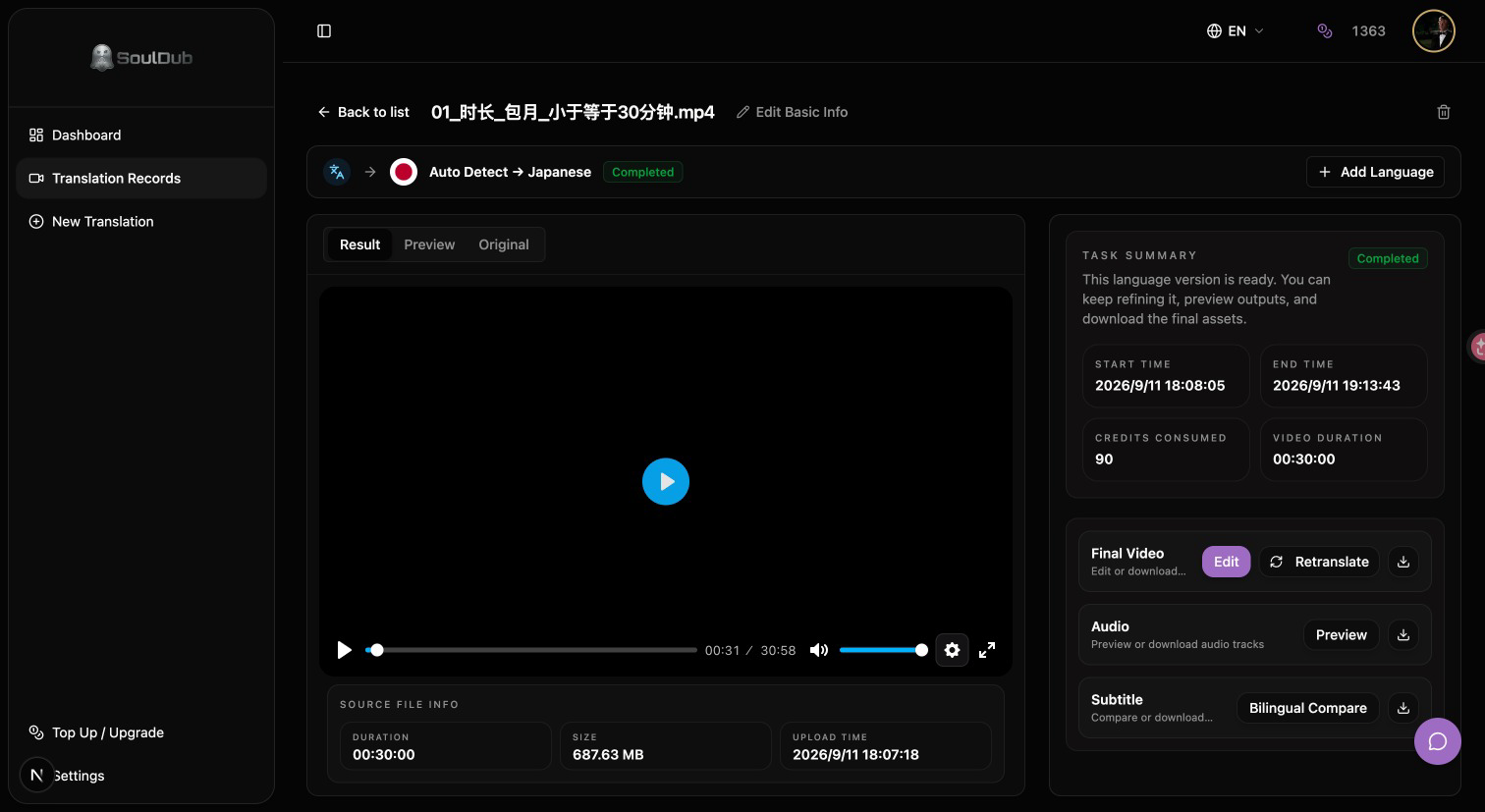
After creation, the task enters processing automatically. The task details view can show total progress, status, source and target languages, video duration, credits consumed, and progress logs. Subtitle recognition, subtitle translation, voice generation, audio adjustment, and video merging may complete in sequence.
5. Open task details and download
When processing is complete, open task details and use the delivery or download area to get the translated video, subtitles, and other outputs available for that task. If a download is not visible yet, confirm that the corresponding processing step is complete and refresh the task view.
Longest path: edit subtitles and update the video
When the first result needs editorial changes, continue with this path:
Sign in → Open workspace → New translation → Upload video → Choose target language → Create task → Check progress → Open task details → Subtitle editing → Edit subtitles → Update subtitles → Download
1. Enter the subtitle editing workspace
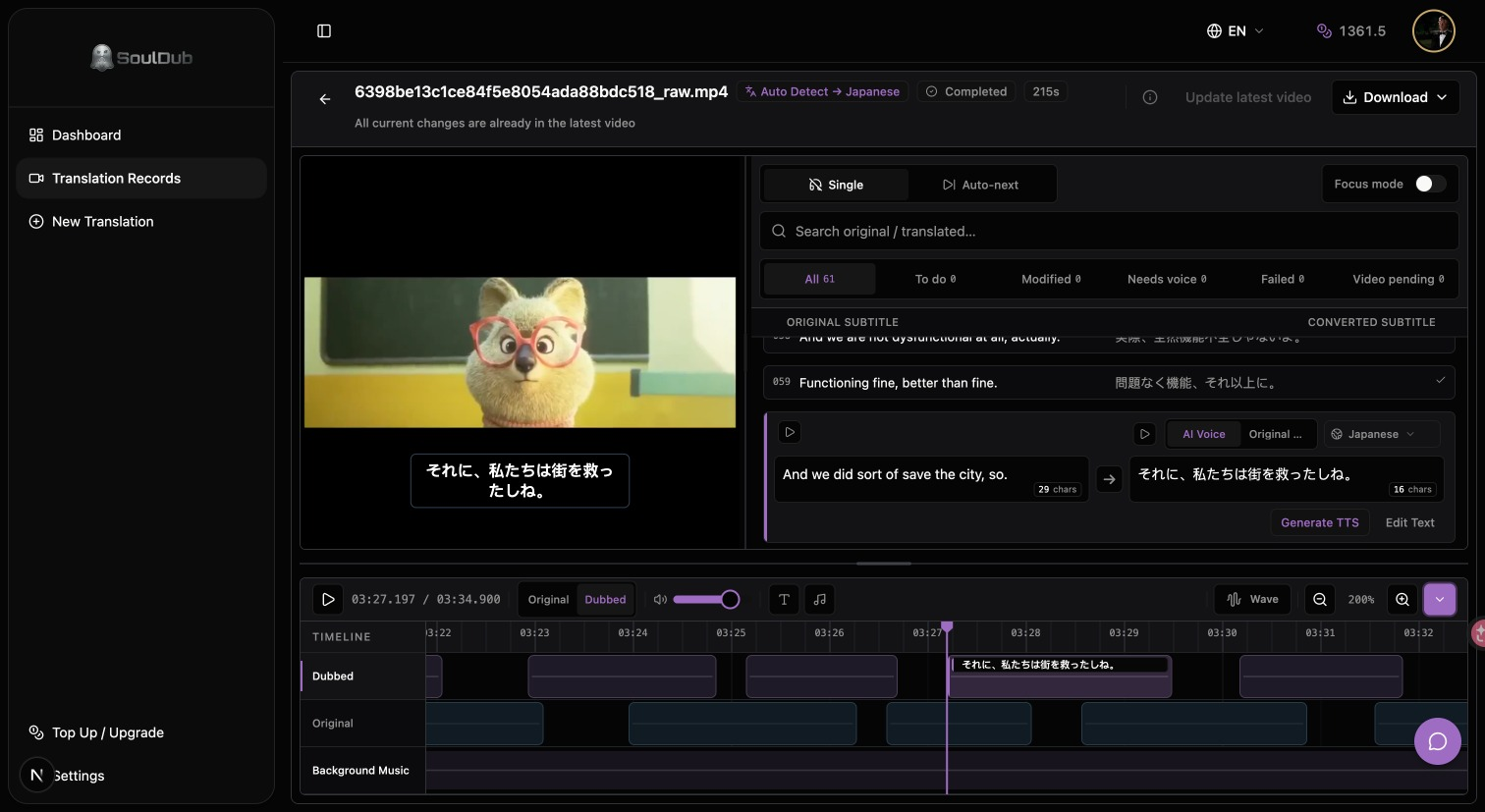
From a completed task or a task with an editable version, select “Edit” or “Enter workspace”. The editor loads the video preview, subtitle list, audio assets, and timeline. If assets are still preparing, wait for them to load or return to the task later.
2. Edit subtitles
Select a subtitle segment to change the source or translated text. You can also adjust the start and end times on the timeline. Review names, brands, numbers, technical terms, line breaks, and speaker changes first.
3. Update subtitle voice and the latest video
After changing translated text, use “Update subtitle voice” or the segment-level regeneration action when it is available for the task. Listen to the surrounding transition. Once local changes are ready, select “Update latest video” and wait for the new video to be merged.
4. Download the final result
Wait until task details show that the latest video has been updated, then download the final video. The subtitle area may also provide original, translated, and bilingual subtitle files. Audio areas may provide vocal, background, or full audio assets; the task view determines what is available.
Publishing checklist
Before publishing, check:
- The translation communicates the intended meaning in the target language.
- Names, numbers, links, and calls to action are correct.
- Subtitle lines stay within a comfortable reading time.
- Audio transitions are natural around edited segments.
- The latest video has finished merging rather than leaving you with the previous export.
- The final export matches the platform and audience where it will be shared.
Common questions
Why is there no download button after creating a task?
Download buttons appear only after the corresponding result and stored asset are ready. Check task progress, wait for video merging to finish, and refresh task details.
Do subtitle edits require new voice generation?
If translated text changes, the affected segments usually need updated translated speech. If only timing changes, listen to the transition and check whether the latest video also needs to be updated.
Does SoulDub support every language in the same way?
No. Available languages, task options, and downloads depend on the current product configuration and task state. Select from the options shown in the creation flow and task details.