
Translate a Spanish Video to English: A Practical Guide
If you need to translate a Spanish video to English, start by deciding what your audience needs: English subtitles, English dubbing, or both.
Translate a Spanish Video to English: A Practical Guide
If you need to translate a Spanish video to English, start by deciding what your audience needs: English subtitles, English dubbing, or both. This applies to tutorials, course lessons, product demos, and other spoken videos.
The basic process is straightforward: upload your video, select Spanish as the source language and English as the target, generate a translation, review it, and export. The part that deserves extra attention is what happens after you make a correction. Your subtitles, voice track, and final video all need to reflect the same wording.
This SoulDub guide covers the choices, the review process, and a practical upload-to-export workflow.
English subtitles or English dubbing—which do you need?
| Your goal | Useful output | What to check |
|---|---|---|
| Let English-speaking viewers follow the original Spanish recording | English subtitles | Meaning, readability, and timing |
| Let viewers follow a lesson or demonstration without reading every line | English dubbing | Wording, pronunciation, pacing, and speaker continuity |
| Publish a finished English version | A reviewed video with the audio and subtitles you need | Whether the downloaded file includes your final corrections |
| Compare the translation with the source | Spanish and English subtitles | Whether important details are preserved |
Subtitles change the words viewers read. Dubbing changes the words they hear. A separate subtitle file does not replace the video’s audio, and translated speech does not automatically change Spanish text inside slides or graphics.
If you only want to understand a video you are watching, its available captions or language tracks may be enough. The workflow below is for producing a version you can review and publish.
How to translate a Spanish video to English in SoulDub
1. Prepare your original video
Start with a video you own or have permission to translate and publish. Use the cleanest recording available, especially if it contains quiet speech or several people speaking.
Make a short reference list of names, product terms, measurements, and instructions that must stay accurate. For a software demonstration, include the button labels visible on screen. This gives the reviewer something concrete to check against.
2. Upload the MP4 and choose your languages
Sign in to SoulDub and open a new translation task. Upload the MP4, then check the file and duration limits shown for your account.
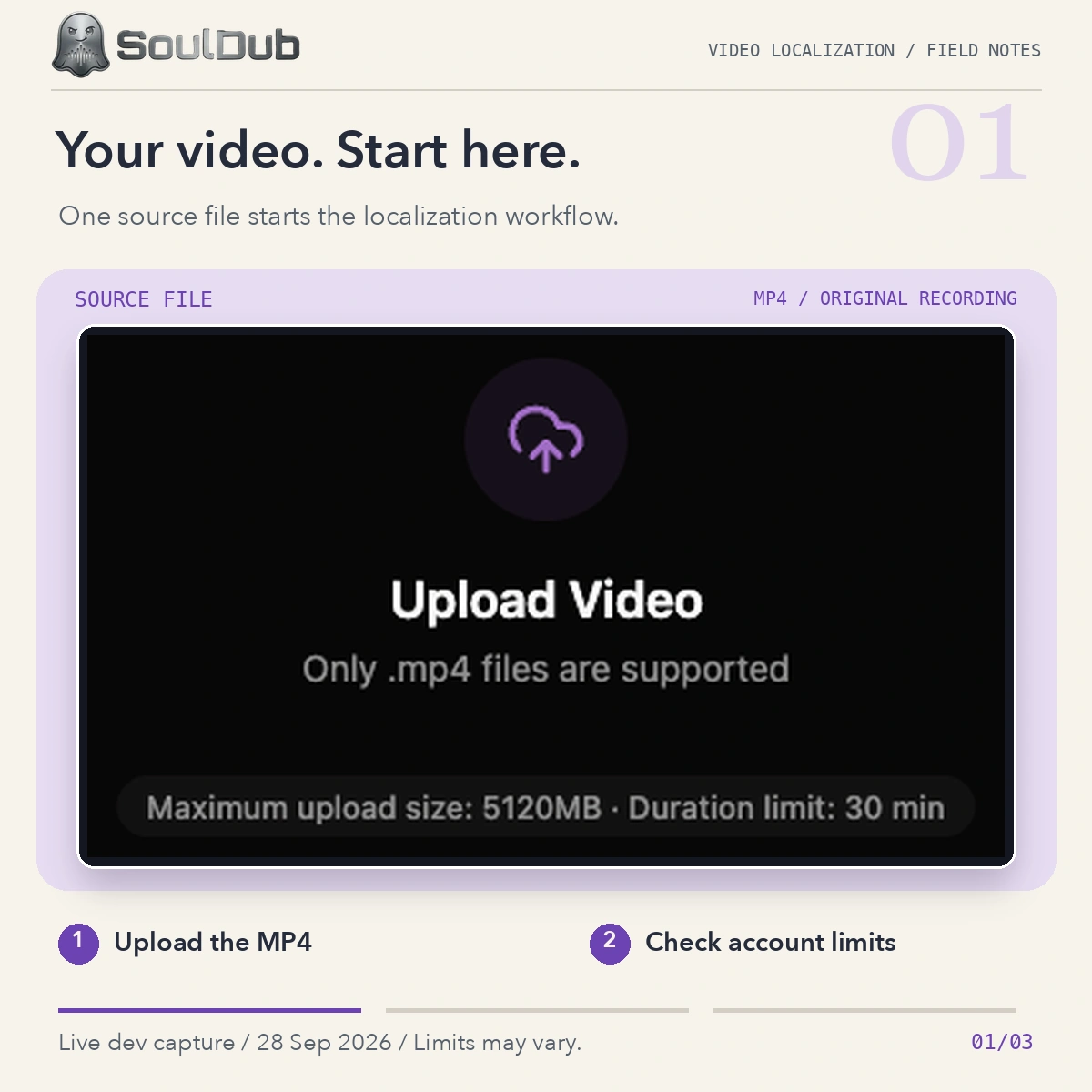
The upload screen shows the limits for the signed-in account. Your account's limits may differ.
Select Spanish as the source language and English as the target. Choose the speaker setting that fits your recording. Review the estimated credit usage before creating the task.
This workflow starts from a video file. It does not require importing a YouTube link.
3. Review the source transcript and English translation
When an editable result is available, open the subtitle workspace and compare the text with the recording. SoulDub supports reviewing and editing source and translated subtitles, as well as adjusting subtitle timing.
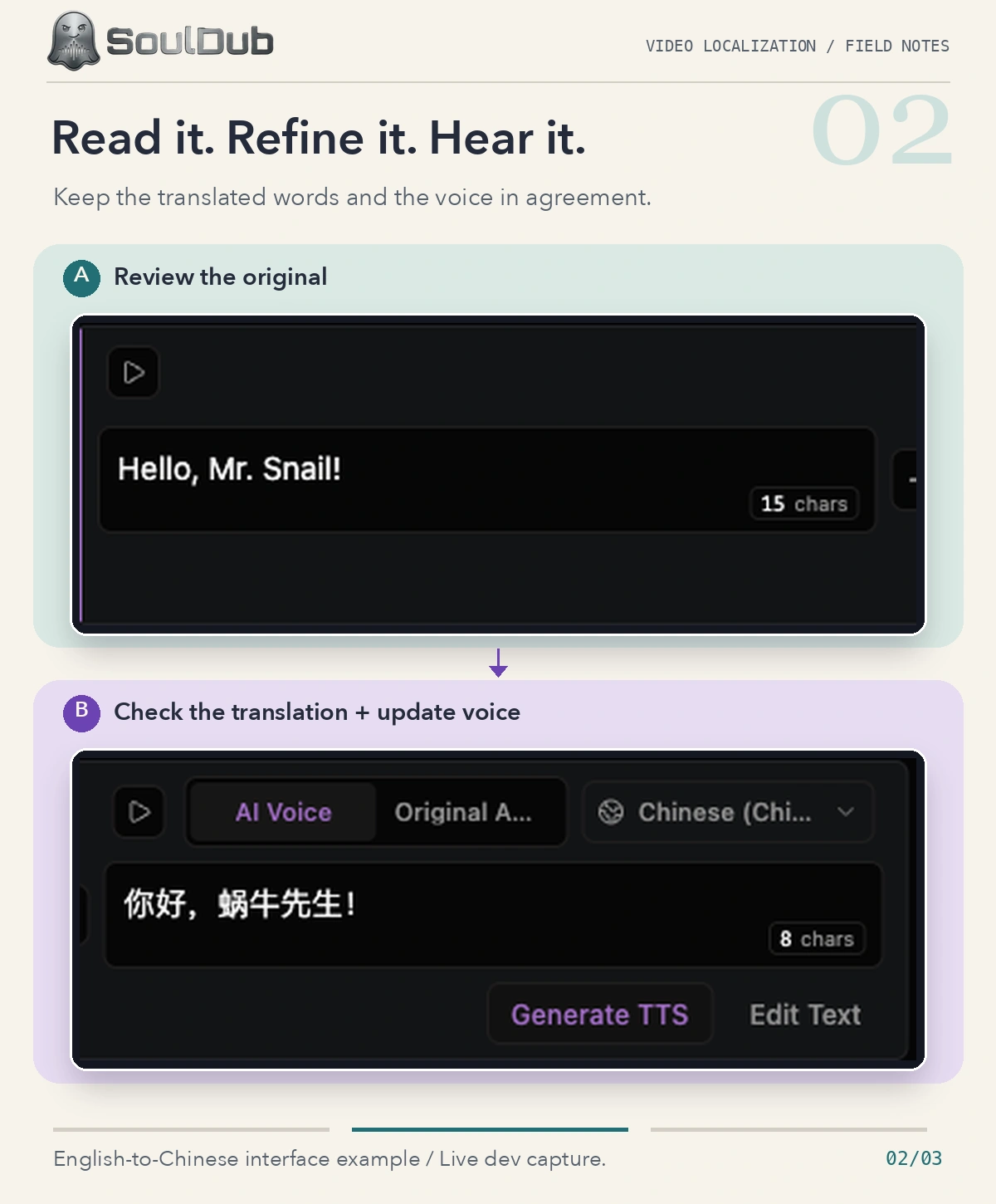
This example uses an English-to-Chinese task to show where to review a translation and regenerate speech for an edited segment. The language pair and available controls can vary by task.
Check the Spanish transcript first when something seems wrong. If the recording says quince minutos but the transcript says cincuenta minutos, an English translation may carry that error forward as “fifty minutes” instead of “fifteen minutes.”
Then read the English while watching the corresponding scene. Does it give viewers the right instruction? Does it preserve the number, name, or product claim? Is the phrasing natural for the intended audience?
If you correct the Spanish text, check the English too. Do not assume a change in one field has updated every related output.
4. Update the voice for any changed sentences
If the video includes English dubbing, changing a subtitle is only part of the correction. The spoken sentence also needs to use the revised wording.
SoulDub supports regenerating translated speech for individual subtitle segments when that action is available for the task. After editing a translated sentence, update the affected segment’s voice and listen to it in context.
Start playback slightly before the edited line and continue into the next sentence. Check the wording, pronunciation, pacing, and transition between segments.
5. Update the final video and download it
Once the edits are ready, update the latest video and wait for processing to finish. Download the completed result and review that file before publishing.
Keep the subtitle or audio assets available for your task alongside the final video. SoulDub can provide original, translated, and bilingual subtitle downloads; the available options depend on the generated results and task state.
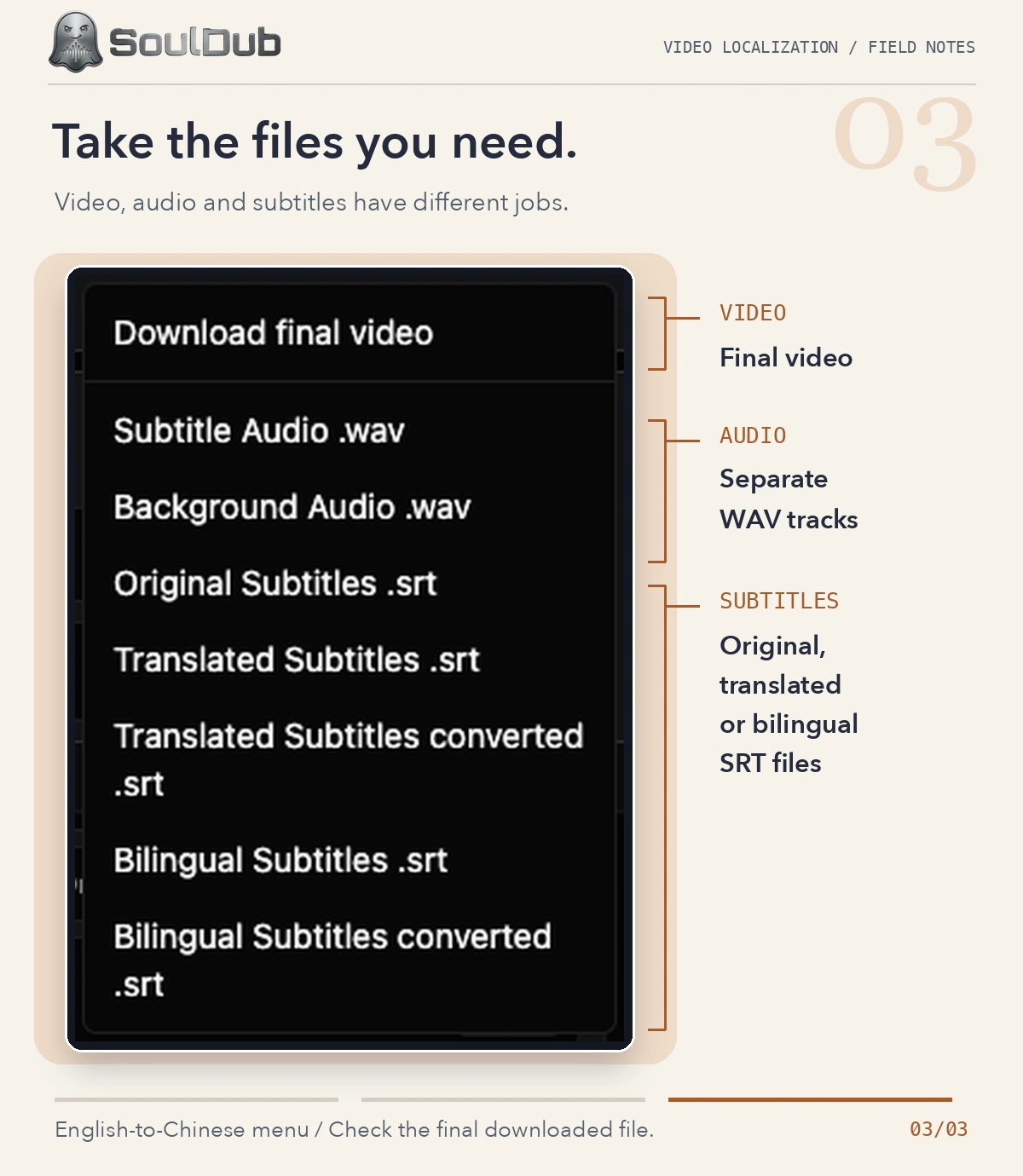
This example uses the download menu from an English-to-Chinese task. Available formats depend on the task and the outputs it has completed.
For the full interface walkthrough, see the SoulDub user guide.
Spanish-to-English details worth checking
Literal wording is not always the most useful wording. A translated instruction should make sense in the scene, and an introduction should fit the tone of the video.
Use examples like these to catch common meaning and tone issues:
| Spanish source | Wording to question | A possible English revision | Why it matters |
|---|---|---|---|
| “Actualmente, el curso tiene diez lecciones.” | “Actually, the course has ten lessons.” | “The course currently has ten lessons.” | “Actualmente” usually refers to the current situation, rather than introducing a correction |
| “Haz clic en Guardar.” | “Click on Keep.” | “Click Save.” | The instruction should match the interface label viewers need to find |
| “Nos vemos en quince minutos.” | “See you in fifty minutes.” | “See you in fifteen minutes.” | A transcription error can change a number and survive into the translation |
| “Te lo explico paso a paso.” | “I explain it to you step by step.” | “I’ll walk you through it.” | A conversational explanation may fit the scene better than a literal sentence |
These revisions depend on context. For a course or product video, have someone comfortable in both languages review important terminology and claims.
If the screen still shows Spanish interface labels, make the English instruction easy to follow—for example, by explaining which visible button to select. Translating the narration alone does not localize the recorded interface.
The final edit: keep the words, voice, and export aligned
Imagine you correct “fifty minutes” to “fifteen minutes” in the English subtitle. Before publishing, check three things:
-
Does the English voice now say “fifteen”?
-
Does the corrected sentence fit the surrounding audio?
-
Did you download the latest completed video?
Use this sequence whenever a translated sentence changes:
Edit the sentence → update its voice → listen in context → update the video → check the downloaded file.
If a sentence sounds rushed, see whether you can shorten it without losing meaning. Adjust subtitle timing as needed, then listen again. Extending a subtitle’s display time alone does not guarantee that the speech will fit.
An earlier download will still contain the earlier version, even after you correct the project online.
Before you publish
-
Check names, numbers, measurements, and instructions against the Spanish recording.
-
Confirm that references to buttons, diagrams, and objects match what viewers see.
-
Read the subtitles at normal playback speed.
-
Listen to edited voice segments and the transitions around them.
-
Confirm that the latest video update has finished before downloading.
-
Review the downloaded file, including the opening, closing, and call to action.
-
Prepare an English title and description appropriate for the audience and platform.
Common questions
Can I use English subtitles and keep the Spanish audio?
Yes, that is a common publishing approach. Check your chosen workflow’s export options. A separate English subtitle file can accompany the original video on a compatible platform without replacing its Spanish audio.
Does editing a subtitle automatically correct the dub?
Do not assume so. In a dubbed workflow, update the affected translated speech after changing the wording, then update and review the final video.
Will the English voice sound exactly like the original speaker?
An AI dub generates new speech. Similarity and delivery depend on the source recording, language, and processing system. Listen to the result before publishing, particularly when the speaker’s delivery is central to the video.
How much does it cost, and how long does it take?
Check the current account limits and estimated credits in the task creation flow. Video length and task conditions vary, so a fixed price or processing time would not apply to every project.
Start with one Spanish video
Choose a short clip with clear speech and terminology you know. Generate the English version, review the wording, and check that any corrections appear in both the voice and the final export. This gives you a practical way to evaluate the workflow before translating a larger collection.
By


