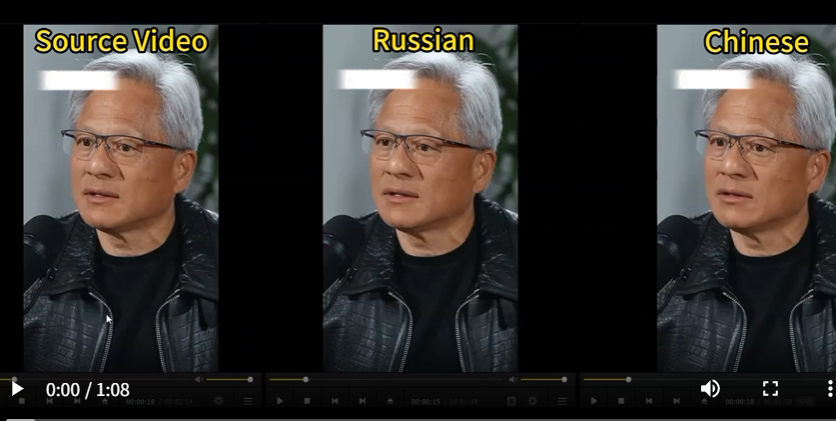
Twitter Video Tools: Create Multilingual Social Clips
Turn interviews, talks, launches, film and animation clips into multilingual Twitter videos with SoulDub. Review translations, refine subtitles and download ready results.
Creators searching for twitter video tools often want more than a downloader. They want to turn an interesting moment into a video another audience can understand: a television interview, a conference idea, a product announcement, a film discussion or an animation scene.
With SoulDub, the useful workflow is select a clip, translate, review subtitles and speech, then download the ready results. Instead of rebuilding the dialogue in a separate text document, you can review the source and translated subtitles alongside the video and prepare a version for another language audience. Use a video editor for framing and graphics, then post the result through Twitter.
Where SoulDub fits among Twitter video tools
A practical toolkit separates jobs instead of assuming one product does everything.
| Step | Tool | Review checklist |
|---|---|---|
| Prepare a local video | Your camera or source library | Clear audio and a complete excerpt |
| Select a self-contained excerpt | Your video editor | Enough context to preserve the meaning |
| Translate dialogue and check the translated audio | SoulDub | Source transcript, translated subtitles and available dubbing outputs |
| Reframe, add graphics and prepare captions | Your video editor | Phone readability and the actual exported picture |
| Publish and evaluate | Twitter and your account workflow | Current upload rules, attribution and audience response |
Start with a local MP4 in SoulDub, select the source and target languages, and create a translation task. Its role is to turn spoken content into reviewable translated subtitles and available dubbed output. Source acquisition, visual editing and social posting remain separate steps.
Five source types for a multilingual video library
TV interviews and broadcast footage

An interview answer can introduce an expert or explain a news topic to another language community. In SoulDub, compare the source transcript with the recording, correct names and dates, then refine the translated subtitles while keeping the question and answer in context.
For a research interview, for example, check that a cautious answer remains cautious in the translation. Use playback to review overlapping dialogue and speaker changes. Download the ready translated or bilingual SRT for your video editor, or review the dubbed video when that output is available. Name cards already embedded in the picture need a separate visual edit.
TED talks and other online talks

A well-chosen talk excerpt can explain a substantial idea in a short social video. SoulDub helps you work through the spoken explanation in another language: review the source subtitles, revise technical terms in the translation, and replay the passage to check how the argument comes across.
Keep an example and its conclusion together. Check that “may improve” does not become “will improve,” and that numbers match the recording. Bilingual SRT is useful for a reviewer who wants to compare both versions before the clip is finished. Handle slide labels in your video editor rather than expecting speech translation to replace them.
Press conferences and product launches

A launch recording can become a feature explainer, an announcement recap or a regional product introduction. Use SoulDub to create and review a target-language version of one complete feature explanation, then repeat for another supported language when needed.
Keep approved product names, units, prices and availability dates beside your review. Correct the translated subtitle text, regenerate affected speech where available, and update and replay the video so the audio matches the revised wording. This makes qualifiers such as “up to” and “in selected regions” part of the review, rather than a correction after publishing. Translate visual charts separately in your video editor.
Movie clips and film discussion

A scene carries emotion, cultural references and story context that literal line-by-line translation can miss. SoulDub gives your review a concrete starting point: a source transcript, translated subtitles and the corresponding video for listening in context.
For a trailer or a film-discussion excerpt, check character relationships, jokes, interruptions and the difference between a question and a threat. Refine the wording in the subtitle editor and review any available dubbed output for tone and timing. Export the ready SRT for caption finishing, keeping enough surrounding dialogue to make the scene understandable.
Anime and animation clips


Animation often has fast exchanges, invented words and distinctive character voices. In SoulDub, review names, honorifics and recurring terms across the translated subtitles so the same character or place is not described differently from one line to the next.
Listen to the translated speech where available and compare it with the scene's intention: excitement, sarcasm and hesitation should still make sense. Update affected speech after text changes when the task supports regeneration, then review the updated video. Use ready bilingual SRT for a second review or translated SRT for the final caption layout.
Translate your video in SoulDub, step by step
1. Prepare a complete MP4 excerpt
Select an excerpt with a clear beginning and end in an external editor, and export a usable local MP4. Favor clear speech and enough context to understand the point. If you need a different crop or blurred personal information, handle that in your editing workflow.
Keep a short review note with the topic, intended audience, target language, approved names and context. These notes help the person checking SoulDub's translated subtitles make consistent choices.
2. Select languages and confirm the task
Open SoulDub and choose your source and supported target language. Public translation entry pages let you select and preview a local video before signing in; sign-in is required to upload it and create the task. Browser-only drafts are temporary, so keep the original file.
Check the active plan's upload and duration limits, speaker-count options and estimated credits. Create the translation task only after reviewing the quote. Credits pay for processing; they are not a fixed count of video minutes. A credit top-up does not increase per-task file-size or duration limits. Compare current plans and limits rather than assuming every source video fits.
3. Review the transcript before polishing the translation
When editable results are available, compare the source subtitles with the recording first. Correct a misheard product name or missing negation before approving the target-language meaning. Then check the translation for terminology, names, tone, numbers and references such as “this model” or “next year.”
Use the available subtitle editor and playback controls to review the excerpt in context. Where segment voice regeneration is available, update affected speech after a text correction, then update the video and listen again. A saved subtitle edit alone does not prove that a previously generated dub now says the revised words. The user guide describes the current workflow.
4. Download subtitles and prepare the final video
Depending on task state, available outputs can include original-language SRT, translated SRT, bilingual SRT with timecodes and a dubbed video. Download the files that are actually ready; do not label a pending output as complete.
For viewers on mobile, finish the clip in your video editor: review framing, caption placement, title cards, attribution, music levels and the first few seconds. Downloading SRT does not automatically burn captions into the picture or guarantee a particular Twitter caption attachment workflow. Subtitle export is part of the current translation workflow, not a promised cheaper subtitle-only service.
5. Publish transparently and retain the reviewed version
Check the current Twitter upload requirements for your account and upload method before posting. Identify the source and date where useful, and disclose that a clip is translated or AI-dubbed so viewers do not mistake generated speech for an original-language recording. Follow applicable platform policies and permissions.
Keep the approved video, subtitles, source reference and language together. Compare meaningful audience signals such as comprehension questions and relevant replies; translation is not a guarantee of reach, engagement or monetization.
Example: a launch excerpt becomes two language assets
Imagine your company owns a product-launch recording and wants an English clip and a Japanese clip. This is an illustrative workflow, not a reported customer result.
First, trim a complete explanation of one feature outside SoulDub. In the translation workspace, check the source transcript and target subtitles. Suppose a claim becomes “twice as fast,” but the speaker actually says “up to twice as fast in this test.” Restore the qualifier in the translated text, regenerate affected speech when available, update the video and replay the comparison.
Download the ready result, add the translated chart in your video editor, and verify the final exported frame and audio together. SoulDub supplies the reviewed dialogue and subtitle assets; your video editor packages them into a clip for each audience.
Questions about Twitter video tools
Can I paste a Twitter or TED link into SoulDub?
The public upload field takes a local MP4 rather than a video link. Choose the file, select languages and create your translation task; downloading a source video and posting the result are separate steps.
Can I translate an entire TV episode, movie or anime episode?
Check the current account's per-task duration and file-size limits first. A focused excerpt is a practical first test: translate it, review the subtitle and speech results, and judge the quality before preparing more material.
Can I download subtitles as well as a dubbed video?
When the corresponding results are ready, SoulDub offers original-language SRT, translated SRT, bilingual SRT with timecodes and dubbed video downloads. SRT files help with review and caption editing in an external video editor. Downloading subtitles does not automatically burn them into the picture or create a separate subtitle-only processing mode.
Can I automate a repeatable translation workflow?
For recurring work, review the video translation API or Video Translate Skill. Use the documented translation workflow to connect video processing to your own tools; source downloading and social publishing are separate integrations.
Start with one clip in SoulDub
The strongest use of twitter video tools is a repeatable translation and review process. SoulDub brings the spoken content, translated subtitles and available voice results into that process, so an interview answer, a talk excerpt or a launch explanation can become an understandable version for another language audience.
Translate your MP4 with SoulDub, review one target-language version, and download the ready subtitles and video to build your multilingual social video library.
Platform and source policies
Use footage you own or have permission to adapt and share. For third-party recordings, including TED talks, check the source's terms and applicable platform policies before publishing.
The cover and scene images are AI-generated editorial illustrations with fictional footage, not screenshots of SoulDub or real customer projects. SoulDub is not affiliated with Twitter or TED.
By